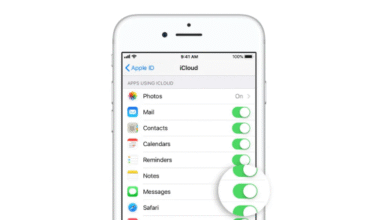
Managing your iCloud storage is essential if you use Apple devices daily. Many users often face the “Storage Full” alert but don’t know where to start. Learning how to check iCloud storage helps you organize data, delete unwanted files, and make your Apple experience smoother and faster.
This guide explains how to check your iCloud storage step-by-step on iPhone, iPad, and Mac. You’ll also learn how to understand storage categories, optimize space, and take control of your iCloud plan easily.


What Is iCloud Storage and Why It Matters
iCloud storage is Apple’s cloud-based service that safely stores your photos, files, messages, and backups. It automatically syncs data across all your Apple devices. Because of this, you can access your information anytime and anywhere.
However, iCloud’s free plan only gives 5GB of space. Once you exceed that limit, your device might stop backing up data. That’s why knowing how to check iCloud storage helps you stay aware of what’s taking up space.
In short, regular storage checks help prevent performance issues and data loss. Managing your cloud storage properly ensures a faster and safer Apple experience.
How to Check iCloud Storage on iPhone or iPad
Checking iCloud storage on an iPhone or iPad is simple and quick. You can see how much space is used and what type of data is consuming it.
Follow these steps:
- Open Settings on your iPhone or iPad.
- Tap on your Apple ID name at the top.
- Select iCloud.
- Choose Manage Account Storage or iCloud Storage.
You’ll now see a detailed bar showing your total and used storage. Categories like photos, backups, and apps will be displayed clearly. This view helps you identify which files need attention.
Transitioning from viewing to managing your storage becomes easier once you know where space is being used.
How to Check iCloud Storage on a Mac
If you use a Mac, checking your iCloud storage is equally convenient. It allows you to track space usage in real-time.
Here’s how to check iCloud storage on Mac:
- Click the Apple menu in the top-left corner.
- Go to System Settings (or System Preferences on older macOS).
- Click your Apple ID.
- Select iCloud and then Manage.
You’ll see a visual chart of your iCloud storage. Each color represents a different category like documents, backups, or photos.
This quick check helps you analyze data consumption and plan what to keep or delete. With regular checks, you avoid running out of storage unexpectedly.
How to Check iCloud Storage on Windows
Apple provides an iCloud app for Windows users too. If you’re on a PC, it’s easy to monitor and manage your cloud data.
Follow these steps:
- Open the iCloud for Windows app.
- Sign in using your Apple ID.
- You’ll see a bar graph displaying your iCloud storage usage.
From there, you can manage files, backups, and photos directly. Since Windows and iCloud integrate smoothly, checking space and clearing unnecessary data becomes effortless.
By maintaining your iCloud storage from your computer, you keep all your devices in sync and organized.
How to Check iCloud Storage Online via Browser
Sometimes, you might not have access to your devices. Don’t worry—you can still check iCloud storage using a browser.
Steps to check via iCloud.com:
- Visit iCloud.com and sign in.
- Click on Account Settings.
- Check the Storage section to see usage details.
This method is helpful when you’re using someone else’s device or a work computer. You can view space usage, delete unnecessary items, or even upgrade your plan online.
Effortless cloud access keeps your files and backups within reach anytime.
Understanding iCloud Storage Categories
When checking iCloud storage, you’ll see various categories. Each one represents different data types. Understanding them helps you manage space efficiently.
Common categories include:
- Photos: Images and videos from your iPhone or iPad.
- Backups: Device and app data backups.
- Messages: iMessage and attachments stored in iCloud.
- Documents: Files saved via iCloud Drive.
- Mail: Emails and attachments linked to your Apple ID.
Recognizing these categories allows you to clean up unnecessary files quickly. Managing these wisely ensures smoother iCloud performance.
How to Free Up iCloud Storage Space
Once you know how to check iCloud storage, the next step is freeing up space. Clearing old data helps maintain device speed and stability.
Tips to free up storage:
- Delete old backups.
- Remove large photos and videos.
- Turn off backup for unused apps.
- Move files to external drives.
- Optimize photo storage with iCloud Photos.
These steps make room for new data without losing important files. With regular cleaning, your iCloud account remains efficient and reliable.
How to Upgrade Your iCloud Storage Plan
If your iCloud space is always full, upgrading your plan is a smart move. Apple offers affordable options through iCloud+.
To upgrade:
- Go to Settings → Apple ID → iCloud → Manage Account Storage.
- Tap Change Storage Plan.
- Choose a plan that fits your needs.
Once upgraded, your files remain safe, and you get more room for photos, videos, and backups. Transitioning to a higher plan ensures peace of mind and continuous access to all your data.
Troubleshooting Common iCloud Storage Issues
Sometimes, even after deleting data, your iCloud might still appear full. This happens due to syncing delays or leftover app data.
Try these solutions:
- Restart your device after deleting files.
- Check for multiple backups.
- Sign out and sign back into iCloud.
- Verify iCloud Photos settings.
By following these quick fixes, you can refresh your storage data and get accurate results. Maintaining clean storage ensures smoother performance across all devices.
Best Practices to Manage iCloud Storage Efficiently
To keep your iCloud storage optimized, follow a few best practices:
- Regularly check storage status.
- Delete unused app backups.
- Optimize photo storage settings.
- Enable iCloud Drive only for essential apps.
- Sync files across devices strategically.
By applying these habits, you’ll keep your iCloud organized and prevent space issues in the future.
Final Thoughts
Learning how to check iCloud storage empowers you to manage your data effectively. Regular monitoring, smart organization, and occasional upgrades keep your Apple experience smooth.
Don’t wait until you see a “Storage Full” message. Start managing your iCloud space today and enjoy worry-free syncing across all your Apple devices.
FAQs
1. How can I check my iCloud storage on iPhone?
Go to Settings → Apple ID → iCloud → Manage Account Storage to view your storage usage.
2. Can I check iCloud storage without my phone?
Yes, you can check via iCloud.com or the iCloud for Windows app.
3. Why is my iCloud storage full even after deleting files?
Old backups or syncing delays might cause this. Restart your device and check again.
4. How do I free up iCloud storage space?
Delete old backups, remove unnecessary photos, and manage app data regularly.
5. Is it worth upgrading my iCloud plan?
Yes, if you frequently back up photos or large files, upgrading ensures enough space and smoother syncing.